YAML Formatter
Paste YAML to get it consistently indented and quoted, with comments kept.
This YAML formatter is a free online tool that reads YAML text and writes it back in one consistent style. Paste your YAML into the form, and the formatted version appears below it. The tool runs entirely in your browser, so nothing you enter is uploaded, and there is no sign-up.
YAML files often mix indent widths, inline lists such as [a, b], and quoted and unquoted strings, especially when they come from different editors. A consistent style makes the structure easier to read and review, whether the file is a Docker Compose file, a Kubernetes manifest, or a general config file. The formatter checks that the YAML parses, but it does not check whether your settings suit the program that reads the file.
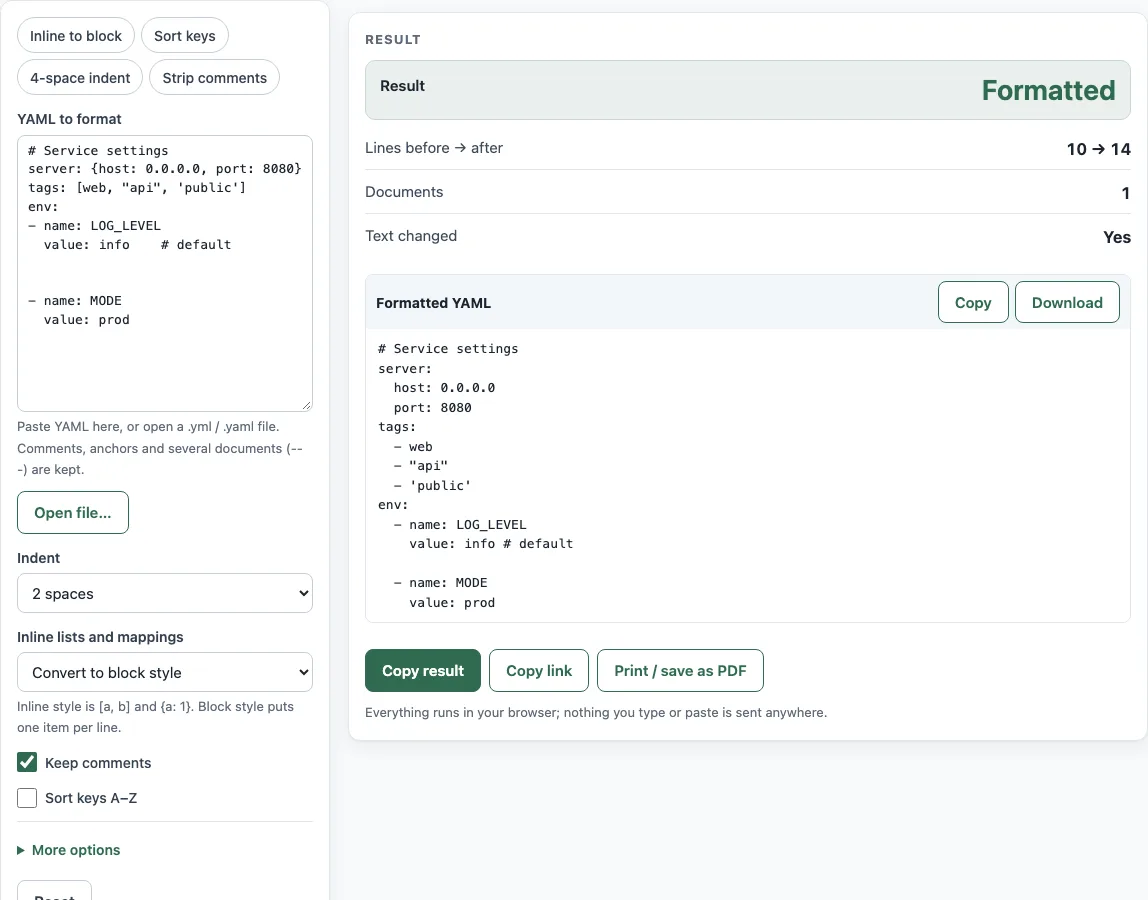
How to use the YAML formatter
- Paste your YAML into “YAML to format”, or press “Open file…” to load a .yml or .yaml file of up to 2 MB.
- Choose an “Indent” of 2 spaces or 4 spaces.
- Under “Inline lists and mappings”, choose “Convert to block style” to turn
{a: 1}and[x, y]into block lines, or “Keep inline” to leave them as they are. - Keep “Keep comments” ticked to keep
#comments, or untick it to remove them. - Tick “Sort keys A–Z” if you want every mapping sorted by key.
- Open More options to set “Indent lists inside mappings”, “Line width”, and “Quoted strings”.
- Check “Result” and “Lines before → after”. When “Result” says “Formatted”, copy the text with Copy from the Formatted YAML block, or save it with Download
formatted.yaml.
The presets Inline to block, Sort keys, 4-space indent and Strip comments set several controls at once. Pick one as a starting point, then adjust any control you need.
“Text changed” tells you whether the output differs from what you pasted; “No, already formatted” means the file already follows the chosen style. Before showing any output, the formatter parses the new text again and compares its data with the input, so formatting never changes a value, a list order or a document count. Anchors, aliases and multiple documents separated by --- are kept, and runs of blank lines are reduced to one.
Can it sort the keys?
Yes. Ticking “Sort keys A–Z” sorts every mapping by its key text, in code-point order. Lists keep their original order, and merge keys (<<) stay first. YAML 1.2.2 section 3.2.1.1 says mapping keys are an unordered set, so sorting keys does not change the data the file describes.
For example, take z: 1, a: 2, and m: with the children y: 1 and b: [3, 1, 2]. With “Sort keys A–Z” and “Keep inline”, the output is a: 2, then m: with b: [3, 1, 2] and y: 1 beneath it, then z: 1. The list [3, 1, 2] stays in its original order.
Sorting can still break a file. If a sorted alias (*x) would come before its anchor (&x), the result would change the data. The formatter parses its output again and compares the data with the input. If they differ, the page shows an error and writes nothing.
Can it change [a, b] lists into block lists?
Yes, with “Convert to block style”. YAML 1.2.2 section 7.4 states that flow collections ([ ] and { }) and block collections express the same data, so the conversion keeps the meaning. [x, y] becomes a dash list, and {a: 1} becomes an indented mapping.
For example, the input a: {b: 1, c: [x, y]} becomes:
a:
  b: 1
  c:
    - x
    - y
“Lines before → after” shows 1 → 5. With “Keep inline”, the same collections are written without padding, as {a: 1} and [x, y].
Comment positions can move during conversion. A comment after [1, 2] becomes a comment line below the converted list. Check the output if those comments matter to you.
Which indent should I choose?
YAML only requires that entries at the same level are indented by the same number of spaces; the YAML 1.2.2 specification does not fix the width. Pick the width your team already uses, so diffs stay small. “Indent lists inside mappings” decides whether a - item line under a key is indented further than the key or written at the same column, which YAML also allows.
Sources (checked 13 October 2026): yaml library docs · YAML spec
Worked examples
| Input | Result |
|---|---|
| server: {host: 0.0.0.0, port: 8080} | 10 lines → 14 lines |
| a: | 4 lines → 4 lines |
| z: 1 | 4 lines → 4 lines |
| name: web # note | 3 lines → 4 lines |
| a: 1 | 3 lines → 5 lines |
Calculated by the tool above; open it with the same values to see each step.
Frequently asked questions
How do I format YAML online?
Paste your YAML into “YAML to format” or load a file with “Open file…”, then choose an indent. The Formatted YAML output appears under the form, and you can copy it or use Download formatted.yaml.
Does it keep my comments?
Yes. “Keep comments” is ticked by default, so lines and trailing comments that start with # stay in the output. Untick it to remove them, and the page then shows “N comment(s) were removed.”
How do I make long lines wrap?
Set “Line width” under More options to 80 or 120 characters. Long plain or quoted text is folded onto continuation lines. “No folding (0)” never wraps lines.
Why did formatting fail?
“Cannot format: the YAML has errors” means the input does not parse, so no output is produced. The Errors row gives the count and lists each error with its line, column, source line and a caret. Duplicate keys, tabs used for indentation and syntax errors are reported the same way, so fix the lines shown and try again.
Is anything sent to a server?
No. The tool runs in your browser and uploads nothing, including files you open with “Open file…”.
Does it change my quote marks?
Only if you pick a style under “Quoted strings”. “Use single quotes” changes strings that are already in double quotes, so a: "x" becomes a: 'x'. Plain text such as c: plain stays plain, and a double-quoted string that contains control characters or line breaks stays double-quoted.
Related tools
- YAML validator: use it to check syntax and view the JSON version of your YAML.
- Docker Compose example generator: use it to start a Compose file, then format it here.
- docker run to Compose converter: use it to turn a
docker runcommand into Compose YAML. - Docker Compose commands: use it to look up the commands that run a Compose file.
- Kubernetes CronJob generator: use it to draft a CronJob manifest.
- Cron expression generator: use it to build the schedule for a cron job.