systemd Timer Generator
Choose a schedule, or paste a cron expression, to get the .timer and .service files and the commands.
<name>.timer and the <name>.service it starts. You enter a timer name, the command to run and a schedule, and the page shows both unit files plus the commands to install and test them. The tool runs entirely in your browser, sends nothing anywhere, and is free with no sign-up. It covers common cases such as a daily backup, a job every 15 minutes, or a job after boot. Treat the output as a starting point and test it on your own system.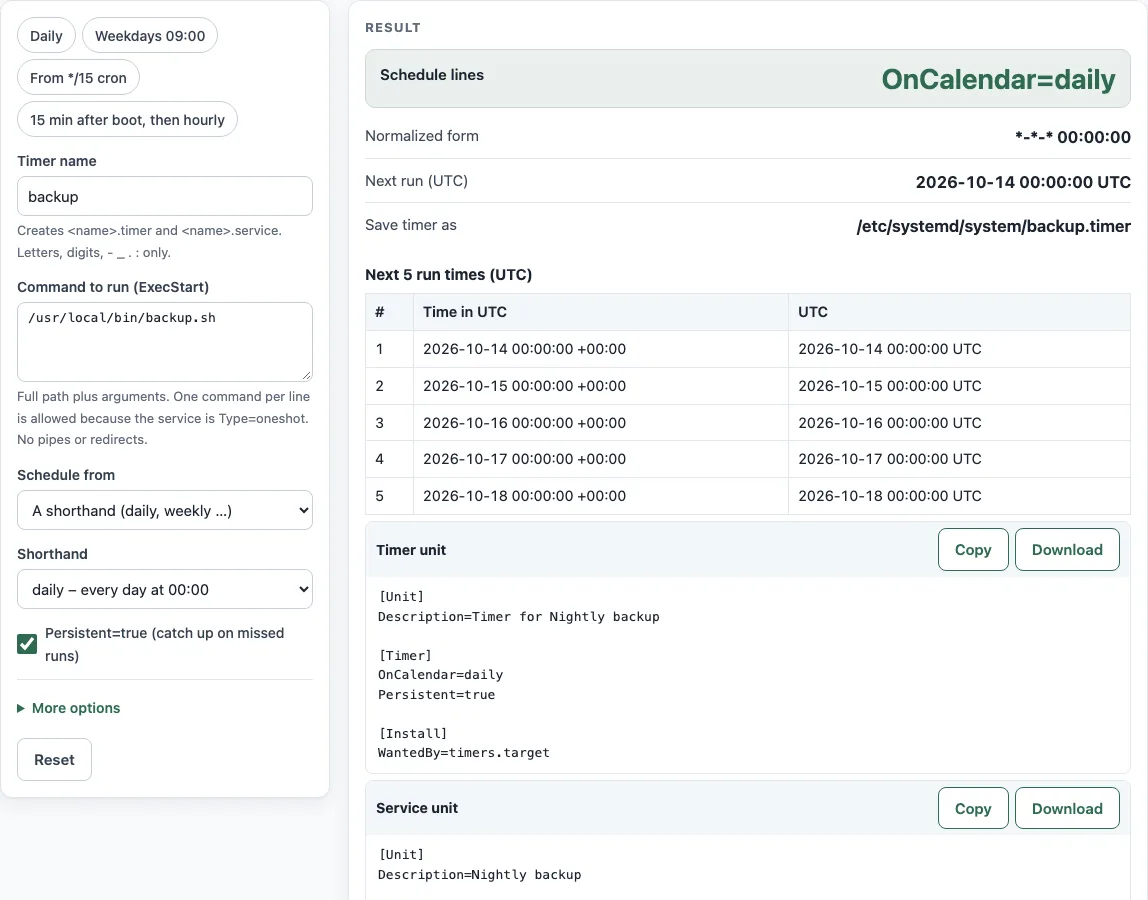
How to use the systemd timer generator
- Type a Timer name, such as
backup. The name sets both file names,backup.timerandbackup.service. The page flags names it cannot use. - Enter the Command to run (ExecStart) with the full path to the program, such as
/usr/local/bin/backup.sh. A relative path is reported as an error. - Under Schedule from, choose one of four options: A shorthand (daily, weekly …), My own OnCalendar text, A 5-field cron expression, or Time after boot / after the last run.
- Fill in the value for that option. Pick from the Shorthand dropdown, or type your OnCalendar text, cron fields or time spans.
- Leave Persistent=true (catch up on missed runs) checked, which is the default, or clear it.
- If you need more, open More options to set What it does (Description), Run as user (User=), RandomizedDelaySec, AccuracySec, Unit= (only if the service has another name) or Time zone for the next run times.
- Check Schedule lines, Normalized form, Next run (UTC) and the Next 5 run times table.
- Copy the Timer unit and Service unit code blocks into files named as shown in Save timer as.
- Run the commands in Install and check. Then test the job with
sudo systemctl start <name>.service.
The presets Daily, Weekdays 09:00, *From /15 cron and 15 min after boot then hourly fill in common schedules. Start from one and adjust it.
How do I create a systemd timer?
A systemd timer needs two units: a <name>.timer that holds the schedule, and a <name>.service that runs the job. By default, the timer starts the service with the same name. The timer file has a [Timer] section with OnCalendar=, OnBootSec= or OnUnitActiveSec=, and an [Install] section with WantedBy=timers.target. The service file uses Type=oneshot and an ExecStart= line. After you save both files, run sudo systemctl daemon-reload and then sudo systemctl enable --now <name>.timer. Enable the timer, not the service.
How do I convert cron to a systemd timer?
The five cron fields map to one OnCalendar line. Lists, ranges and steps in the minute, hour, day-of-month, month and day-of-week fields all carry over. For example, */15 9-17 * * 1-5 becomes Mon..Fri *-*-* 09..17:00/15:00, and 30 2 * * 0 becomes Sun *-*-* 02:30:00. When both day-of-month and day-of-week are restricted, crontab(5) runs the job when either field matches. The page therefore writes two OnCalendar= lines, as it does for 0 6 1,15 * 1. The page refuses @reboot, because it has no calendar equivalent.
How do I test an OnCalendar expression?
Run systemd-analyze calendar "<expr>". It prints the normalized form and the next elapse time. Add --iterations=5 to see five run times. Check a rule like *-02~03 12:00 this way. It runs on the third-last day of February: 26 February in 2027, and 27 February in the leap year 2028. Time zones matter too. Mon..Fri *-*-* 09:00:00 in Europe/Berlin is 08:00 UTC in winter and 07:00 UTC in summer time. The tool’s grammar check catches basic errors, but systemd-analyze is the authority.
What is Persistent=true?
Persistent=true catches up on a run missed while the machine was off. The missed job runs at the next start. It works only with OnCalendar=, and systemd defaults it to false, although the tool checks it by default. With monotonic timers, such as OnBootSec=, the page leaves it out and shows a note.
Why does my timer fire a bit late?
AccuracySec defaults to 1 minute, so a timer may fire up to a minute late. Set AccuracySec=1s if you need an exact start. RandomizedDelaySec defaults to 0 and spreads runs over a window on purpose, so check it if the delay is larger than you expect.
Sources (checked 13 October 2026): crontab(5) · systemd.timer(5)
Worked examples
| Input | Result |
|---|---|
| daily | OnCalendar=daily |
| */15 9-17 * * 1-5 | OnCalendar=Mon..Fri *-*-* 09..17:00/15:00 |
| 0 6 1,15 * 1 | OnCalendar=*-*-01,15 06:00:00 ; OnCalendar=Mon *-*-* 06:00:00 |
| Mon..Fri *-*-* 09:00:00 | OnCalendar=Mon..Fri *-*-* 09:00:00 |
| OnBootSec=15min, OnUnitActiveSec=1h | OnBootSec=15min ; OnUnitActiveSec=1h |
Calculated by the tool above; open it with the same values to see each step.
Frequently asked questions
How do I stop or remove a timer?
Run sudo systemctl disable --now <name>.timer. That stops the timer and removes it from timers.target, so it does not start again after a reboot. Delete the two unit files and run sudo systemctl daemon-reload if you no longer need them.
How do I list timers?
Run systemctl list-timers. It shows when each timer last ran and when it runs next. Add --all to include inactive timers.
How do I see the output of the job?
Run journalctl -u <name>.service to read the log of the service the timer starts.
How do I run a job 15 minutes after boot, then hourly?
Use the Time after boot / after the last run option, or write OnBootSec=15min and OnUnitActiveSec=1h in the timer file. OnBootSec= counts from boot, and OnUnitActiveSec= counts from the service’s last start. The page warns you if you set OnUnitActiveSec without OnBootSec.
What time zone does the timer use?
A timer uses the server’s local time zone unless the expression ends with a zone name, such as Europe/Berlin. The Time zone for the next run times option sets the zone the page uses for its next run times, and it defaults to UTC.
Related tools
- Systemd service generator: create the
.servicefile that a timer starts, when the job needs more settings thanType=oneshotandExecStart=. - Cron expression generator: build a 5-field cron expression first, then convert it here if you are moving from cron.
- Crontab syntax explainer: check what each cron field means before you convert it to an OnCalendar line.
- Cron expression tester: list the next runs of an existing cron line, to compare with the timer’s next run times.
- Cron every 5 minutes: common interval schedules and how cron counts steps.
- Kubernetes CronJob generator: the same kind of schedule for a job that runs in a Kubernetes cluster.