Kubernetes CronJob Generator
Fill in the schedule and container to get a ready Kubernetes CronJob manifest and kubectl commands.
This Kubernetes CronJob generator writes a batch/v1 CronJob manifest in YAML, along with the kubectl commands to work with it, from a simple form. Use it when you need a k8s cronjob that runs a container on a repeating schedule, such as a nightly backup or an hourly cleanup. The tool runs entirely in your browser and sends nothing anywhere. It is free and needs no sign-up.
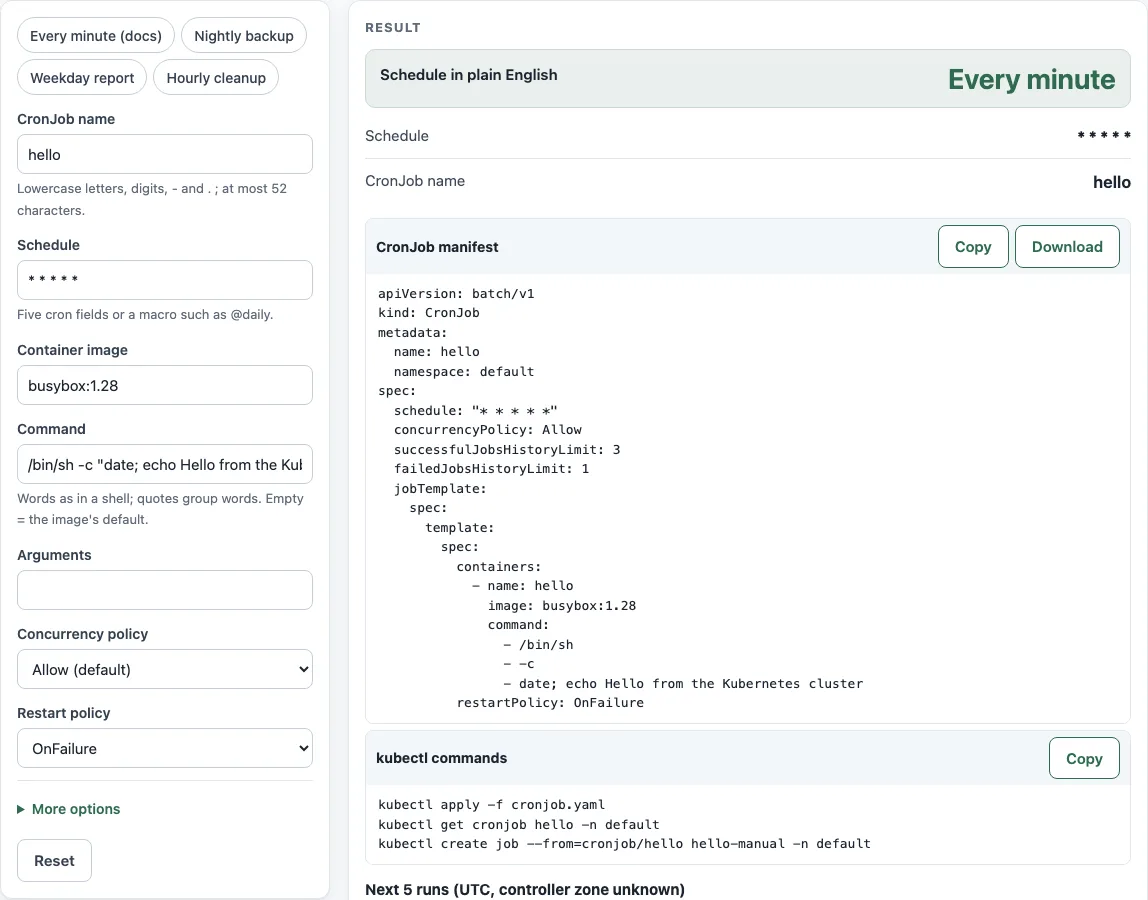
You enter a name, a schedule, and a container image, and you can add a command and arguments. The page then shows the schedule in plain English, the CronJob manifest, a block of kubectl commands, and the next five run times. A kubernetes cron job creates Jobs on a timetable, so the output gives you a starting point. Check it against your own cluster before you rely on it.
How to use the Kubernetes CronJob Generator
- Type a CronJob name. Use lowercase letters, numbers, and hyphens, and keep it to 52 characters or fewer.
- Enter a Schedule in cron format, or pick a preset: “Every minute (docs)”, “Nightly backup”, “Weekday report”, or “Hourly cleanup”. For a kubernetes cronjob every 5 minutes, enter
*/5 * * * *. - Enter a Container image, such as
busybox:1.28. - Optionally fill in Command and Arguments. They are split like shell words, and nothing is expanded.
- Choose a Concurrency policy (Allow, Forbid, or Replace) and a Restart policy (OnFailure or Never).
- Open “More options” to set Namespace, Time zone (optional), and Environment variables (one KEY=value per line). You can also set the history, deadline, and backoff fields, and Suspend (create no Jobs).
- Read Schedule in plain English and the Next 5 runs table to confirm the timing.
- Download the CronJob manifest as
cronjob.yaml, then use the kubectl commands block to apply it and check it.
The “Every minute (docs)” preset reproduces the example from the Kubernetes documentation, so it is a good first test. Apply your first CronJob to a test namespace before you use it on real workloads. Every change to the form rewrites the manifest at once, and Copy link keeps your settings in the page address so you can come back to the same CronJob later.
What is the CronJob schedule format?
A CronJob schedule has five fields in this order: minute (0-59), hour (0-23), day of month (1-31), month (1-12), and day of week (0-6, or sun-sat). An asterisk means every value, and */5 in the minute field means every 5 minutes. Kubernetes accepts macros such as @hourly, @daily, @weekly, @monthly, and @yearly, but not @reboot.
How do I set a time zone?
Use the Time zone (optional) field, which writes spec.timeZone, for example Etc/UTC. Do not put TZ= or CRON_TZ= inside the schedule, because Kubernetes rejects it and the tool shows a validation error. Without a time zone, the kube-controller-manager’s local time zone is used. The Next 5 runs table uses the zone you set, or UTC if you set none.
How do I stop overlapping runs?
Set Concurrency policy to Forbid. Forbid skips a new run while the previous Job is still running. Allow, the default, lets runs overlap. Replace replaces the running Job with a new one. Forbid suits work that must not run twice at once, such as a backup that writes to the same location.
What does the starting deadline do?
startingDeadlineSeconds (Starting deadline (seconds)) is how late a run may still start. If the controller misses a scheduled time, for example because it was down, and more than this many seconds have passed, that run is skipped and counted as missed. The Kubernetes documentation warns that a value below 10 seconds may stop the CronJob from being scheduled at all, because the controller checks every 10 seconds, so the tool warns about such values. Leave the field empty if you have no reason to set it.
Why is my CronJob name rejected?
The name must be a valid DNS subdomain and at most 52 characters. The controller appends 11 characters to the CronJob name when it creates Jobs, and Job names are limited to 63 characters, which is where the 52 limit comes from. A 53-character name is rejected, and a 52-character name is accepted. A name with a dot triggers a warning, because the Kubernetes documentation recommends a DNS label (lowercase letters, numbers, and hyphens) for best compatibility.
Sources (checked 13 October 2026): Kubernetes docs
Worked examples
| Input | Result |
|---|---|
| hello: * * * * * | Every minute |
| nightly-backup: 0 2 * * * (Etc/UTC) | At 02:00 |
| weekday-report: 30 8 * * 1-5 (America/New_York) | At 08:30 on Monday through Friday |
| hourly-cleanup: @hourly | At minute 0 past every hour |
Calculated by the tool above; open it with the same values to see each step.
Frequently asked questions
How do I create a CronJob in Kubernetes?
Fill in the form, download the CronJob manifest as cronjob.yaml, and run kubectl apply -f cronjob.yaml. Then run kubectl get cronjob <name> -n <ns> to confirm it exists.
How do I run a CronJob now?
Run kubectl create job --from=cronjob/<name> <name>-manual -n <ns>. This starts a one-off Job from the CronJob’s template, which is useful for testing before the next scheduled run.
How many Jobs are kept?
By default, 3 successful Jobs and 1 failed Job are kept. Change these with Successful jobs to keep and Failed jobs to keep. Setting a value to 0 keeps none of that type.
How do I see the output of a run?
Each run is a Job with its own Pod. kubectl get jobs -n <ns> lists the Jobs the CronJob created, and kubectl logs job/<job-name> -n <ns> prints the container output of one of them. Finished Jobs are cleaned up according to the history limits and the Delete finished Jobs after (seconds) field.
How do I suspend a CronJob?
Tick Suspend (create no Jobs) and apply the manifest again. This sets spec.suspend: true, and the CronJob creates no new Jobs until you apply it again without the setting.
Related tools
- Cron expression generator: use it to build a cron string for any scheduler that uses the standard five fields.
- Cron every 5 minutes: use it to get the exact expression for a 5-minute interval.
- Cron expression tester: use it to check the upcoming run times of an expression before you use it.
- Crontab syntax explainer: use it to learn what each field in a crontab line means.
- Cron time zone converter: use it to see when a schedule runs in another time zone.
- Quartz cron expression generator: use it when your scheduler uses Quartz cron syntax.
- systemd timer generator: use it when you schedule work on a Linux host with systemd instead of in Kubernetes.