Docker Compose Example Generator
Pick the services you need to get a working compose.yaml example with its .env file and commands.
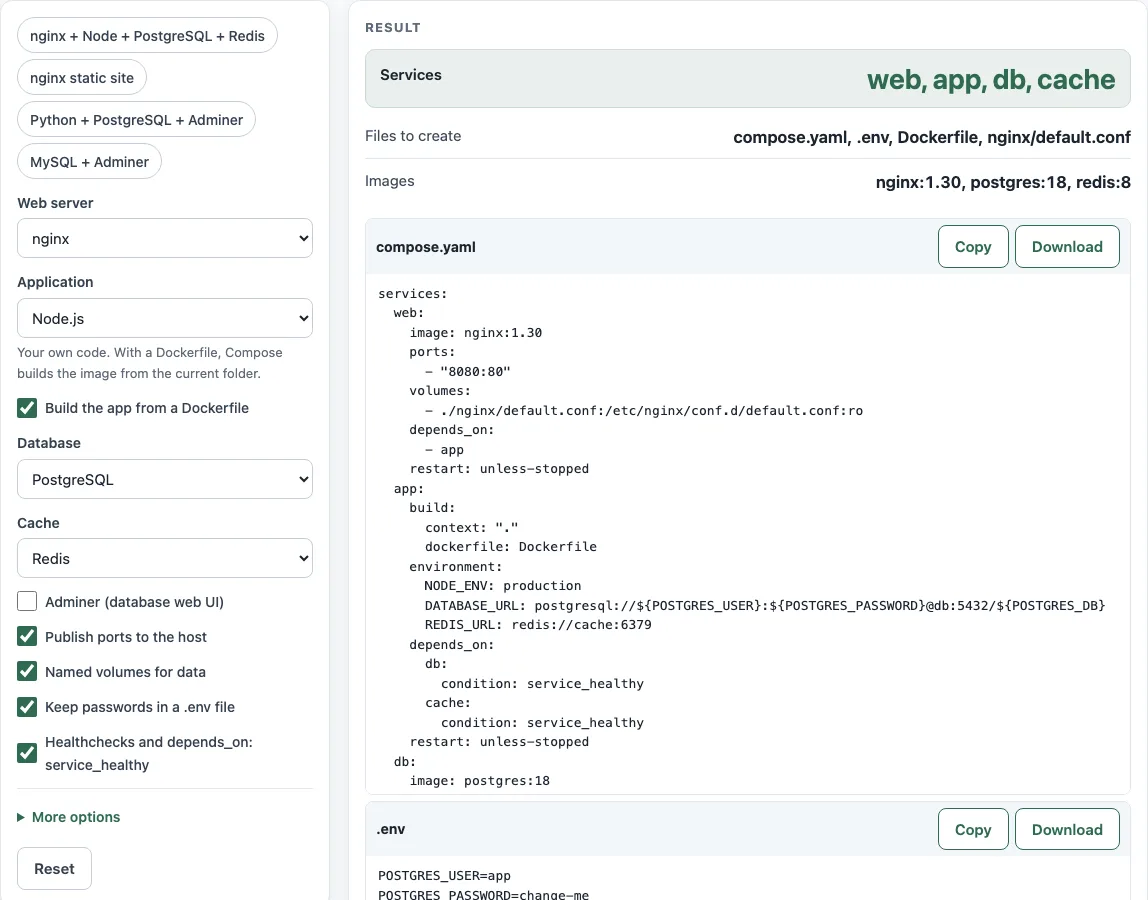
This free Docker Compose example generator builds a runnable Docker Compose example from the options you choose. You pick a web server, an application, a database, a cache and a few settings, and the page shows the compose.yaml file, a .env file, a Dockerfile, an nginx config and the commands to start and stop the stack. Each file has Copy and Download buttons, and the Commands output has Copy only.
The tool runs entirely in your browser, sends nothing anywhere, and is free with no sign-up. Use it as a starting point for a sample docker compose yml file, a PostgreSQL setup, or a Python or Node.js app with a database. Test the output before you rely on it.
How to use the Docker Compose Example Generator
- Set Web server to “None” or “nginx”.
- Set Application to “None”, “Node.js”, “Python” or “A prebuilt image”.
- For Node.js or Python, turn on Build the app from a Dockerfile if you want Compose to build the image from source.
- Set Database to “None”, “PostgreSQL”, “MySQL” or “MariaDB”.
- Set Cache to “None” or “Redis”.
- Turn on Adminer (database web UI) if you chose a database. Adminer is a small web page for browsing tables; the generator sets its default server to the
dbservice, so the login form already points at your database. - Turn on Publish ports to the host, Named volumes for data, Keep passwords in a .env file and Healthchecks and depends_on: service_healthy as needed.
- Open More options to set Restart policy and PostgreSQL version (18 or 17).
- Check the result rows: Services, Files to create and Images.
- Copy or Download each file, then run the commands shown under Commands.
The four presets fill in the controls for you: nginx + Node + PostgreSQL + Redis, nginx static site, Python + PostgreSQL + Adminer, and MySQL + Adminer. Change any control after applying a preset and the output updates to match. Read the warning on the page before you use the output, because it lists placeholder passwords, loopback-only database ports and Redis without a password.
What does a docker compose file look like?
A Compose file has a services: map with one entry per container. Each entry names an image or a build, plus optional ports, volumes and environment values. Named volumes are declared once in a top-level volumes: block. The generator writes this file as compose.yaml, and the default file name is compose.yaml (preferred) or compose.yml. The top-level version: key is obsolete in the Compose Specification, so the generated file leaves it out.
How do I add PostgreSQL to docker compose?
Choose “PostgreSQL” under Database and the generator adds a db service that uses the postgres image. The service needs POSTGRES_PASSWORD, which the postgres image requires for its first start, and it gets a named volume and a healthcheck. POSTGRES_USER defaults to postgres, and POSTGRES_DB defaults to the value of POSTGRES_USER. A trimmed version looks like this:
services:
  db:
    image: postgres:18
    environment:
      POSTGRES_PASSWORD: ${POSTGRES_PASSWORD:?set POSTGRES_PASSWORD in .env}
    volumes:
      - pgdata:/var/lib/postgresql
volumes:
  pgdata:
Where does the PostgreSQL volume go?
For PostgreSQL 18 and later, mount the volume at /var/lib/postgresql. For 17 and earlier, mount it at /var/lib/postgresql/data. PostgreSQL 18 declares the volume at the parent directory and stores data in /var/lib/postgresql/18/docker. If you mount /var/lib/postgresql on version 17, the data lands in an unnamed volume that the image declares at /var/lib/postgresql/data, not in your named volume, so match the path to the version you chose under PostgreSQL version.
How do I wait for the database before the app starts?
Use depends_on with condition: service_healthy, and give the database a healthcheck. A started container is not the same as a ready service, so this condition waits until the healthcheck passes. For PostgreSQL, the generated healthcheck runs pg_isready -h 127.0.0.1 -U $${POSTGRES_USER} -d $${POSTGRES_DB}. The -h 127.0.0.1 part forces a TCP connection, and the $$ keeps the variables for the container shell. Exit code 0 means the server accepts connections.
How do I keep passwords out of compose.yaml?
Turn on Keep passwords in a .env file. The generator then writes ${POSTGRES_USER}-style variables into compose.yaml and puts placeholder values such as app, change-me and change-me-root in .env. Compose reads .env from the project folder automatically. Add .env to your .gitignore file so real passwords do not get committed, and replace the placeholders before you start the stack.
Sources (checked 13 October 2026): Docker Hub image docs · source code · Docker docs
Worked examples
| Input | Result |
|---|---|
| nginx + Node.js + PostgreSQL + Redis | 4 service(s): web, app, db, cache |
| nginx | 1 service(s): web |
| Python + PostgreSQL + Adminer (database web UI) | 3 service(s): app, db, adminer |
| MySQL + Adminer (database web UI) | 2 service(s): db, adminer |
| nginx + Node.js + MariaDB + Redis | 4 service(s): web, app, db, cache |
Calculated by the tool above; open it with the same values to see each step.
Frequently asked questions
How do I build my app from a Dockerfile in Compose?
Turn on Build the app from a Dockerfile for Node.js or Python. The app service then uses build: { context: ., dockerfile: Dockerfile }, and the page shows a matching Dockerfile. The Node.js Dockerfile starts from node:24-alpine and the Python one from python:3.13-slim. Both assume your project folder already contains package.json or requirements.txt, plus server.js or app.py.
How do I run it?
Save the files in one project folder, then run docker compose up -d --build from that folder. This builds the app image and starts the containers in the background. Stop the stack with docker compose down. Add -v to also delete named volumes, but be aware that this deletes your database data.
Why are the database ports only on 127.0.0.1?
When Publish ports to the host is on, the database and Redis ports are bound to 127.0.0.1. This means only your own machine can reach them. Containers in the same Compose project still connect to the database by its service name, db, on the default network.
How do I check the file before I run it?
Run docker compose config -q in the project folder. It exits with an error if the file has a problem, such as a missing variable. This does not confirm that your app works, so start the stack and check the logs with docker compose logs as well.
Can I use the prebuilt image option for my own app?
Yes. Choose “A prebuilt image” under Application. The generator uses the placeholder example/app:1.0, and a warning tells you to replace it with your own image name and tag.
Related tools
- systemd service generator: create a service unit file when you want to run a program on a Linux host outside Docker.
- systemd timer generator: build a timer that starts a service on a schedule.
- Cron expression generator: write a schedule expression and see when it will run.
- Crontab syntax explainer: learn what each field in a crontab line means.
- htpasswd generator: create a password file for basic authentication, such as one used in front of an nginx site.
- YAML validator: check YAML indentation and syntax when a Compose file will not parse.