Docker Compose Commands
Pick a docker compose command and its options to get the command line, with every flag explained.
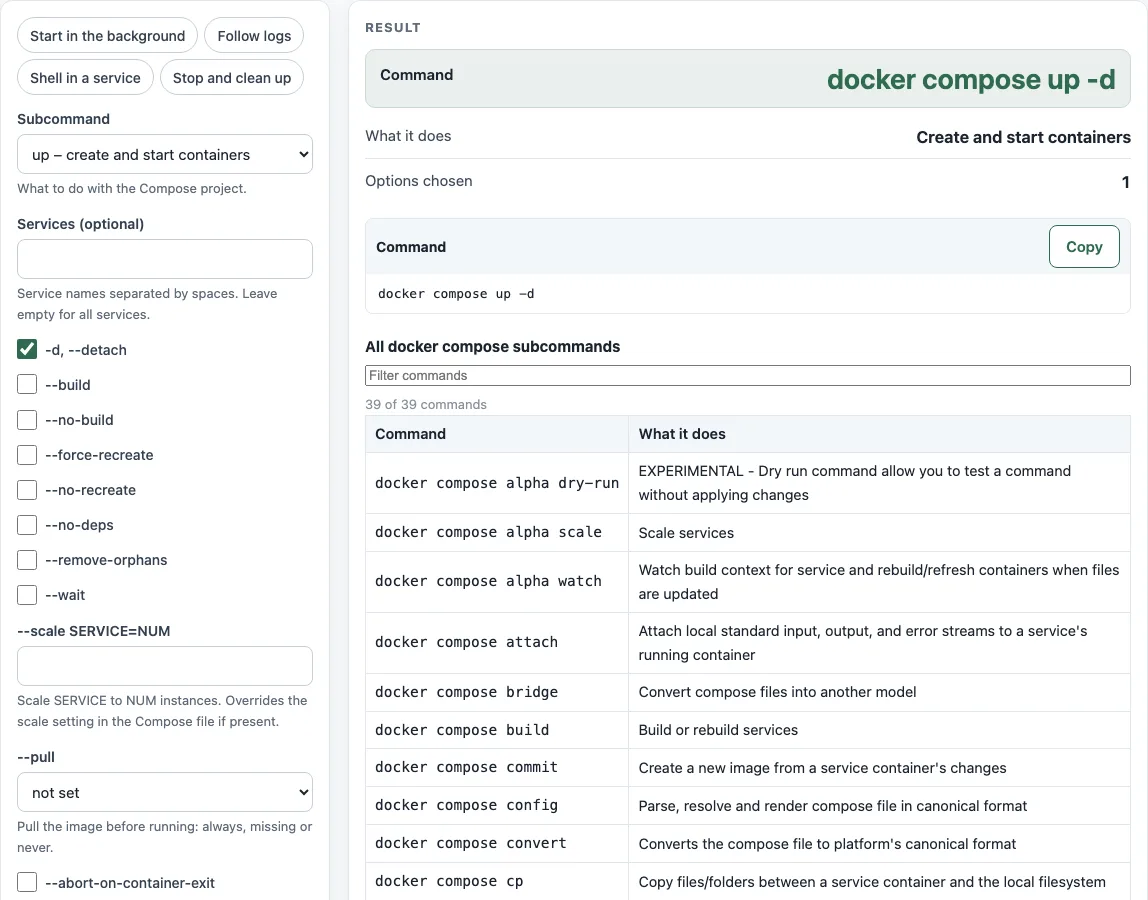
This Docker Compose command builder writes a docker compose command for you. Pick a subcommand such as up, logs or exec, fill in the fields that appear, and the full command updates as you go, for example docker compose up -d. It covers all 21 subcommands that can be built, and a reference table lists all 39 subcommands from the CLI reference.
The tool runs entirely in your browser. It sends nothing anywhere, it is free, and you do not need to sign up. Use it when you know what you want to do but not the exact flags, or when you want to check that a combination is allowed before you run it.
How to use the Docker Compose command builder
- Open Subcommand and choose the action you need, such as up, logs or exec.
- Under Services (optional), type service names separated by spaces. For exec and run, enter a single Service and the Command and arguments. For cp, enter the two paths in Command and arguments.
- Tick the checkboxes or fill in the fields for the options that appear, such as -d, –detach.
- If you need a different Compose file or project, open More options and set Compose file(s) (-f) or Project name (-p).
- Read the Command row or the code block, then use Copy.
- Check the Warnings and How it was calculated sections before you run anything.
The presets Start in the background, Follow logs, Shell in a service and Stop and clean up fill in the form for common jobs. To find a subcommand in the reference table, type part of its name in the filter box under All docker compose subcommands.
Each option you tick adds one line under How it was calculated that says what the flag does, taken from the Docker CLI reference. If two options cannot be used together, a warning names both, so you can fix the command before you paste it into a terminal or a script.
What does docker compose up -d do?
docker compose up creates and starts the containers defined in your Compose file. The -d flag (--detach) runs them in the background, so your terminal returns straight away. Without -d, the container output streams into your terminal, and stopping that process stops the containers.
Commands are built in a fixed order: docker compose, then global options such as -f and -p, then the subcommand, then its options in the order of the reference tables, and finally the services. That is why docker compose -f compose.yaml -f compose.prod.yaml -p demo up --build --wait puts the global options before up. Values with spaces or shell characters are wrapped in single quotes.
Some flags conflict. --abort-on-container-exit is incompatible with -d. --wait implies detached mode, so adding -d to it does nothing extra. --force-recreate and --no-recreate cannot be used together.
Docker compose tutorial: the first commands to learn
A short docker compose tutorial for a new project needs only a handful of commands, run from the folder that holds compose.yaml:
docker compose config -qchecks the file and prints nothing if it is valid.docker compose up -dcreates and starts every service in the background.docker compose pslists the containers of the project and their state.docker compose logs -f webfollows the output of one service.docker compose exec web shopens a shell in a running container.docker compose downstops and removes the containers and the default network.
Pick each of these in Subcommand to see its options. The Docker Compose example generator writes a compose.yaml to practise on.
What is the difference between docker compose up and start?
up creates containers if they do not exist yet and starts them. Add --build when you want images built first. start only starts containers that already exist for a service. It does not create or build anything.
Use up after you change the Compose file. The reference says restart does not apply edits to the file, so you need to recreate the containers with up. Also note that start --wait-timeout needs --wait. stop stops containers without removing them, while down stops them and removes them along with their networks.
Sources (checked 13 October 2026): Docker docs
Worked examples
| Input | Result |
|---|---|
| up – create and start containers | docker compose up -d |
| up – create and start containers | docker compose -f compose.yaml -f compose.prod.yaml -p demo up --build --wait |
| logs – view output from containers | docker compose logs -f --tail 100 web |
| exec – execute a command in a running container | docker compose exec -T db psql -U app |
| down – stop and remove containers, networks | docker compose down -v --remove-orphans |
| run – run a one-off command on a service | docker compose run --rm web sh |
Calculated by the tool above; open it with the same values to see each step.
Frequently asked questions
How do I see logs?
Run docker compose logs -f SERVICE, for example docker compose logs -f web. The -f flag follows new output as it arrives. Add --tail N to show only the last N lines, such as docker compose logs -f --tail 100 web.
How do I run a command in a container?
Use docker compose exec SERVICE COMMAND for a container that is already running, such as docker compose exec db psql -U app. For a new one-off container, use docker compose run --rm SERVICE COMMAND, where --rm removes the container when it exits. In scripts and cron jobs, add -T to exec, because exec allocates a TTY by default and -T turns that off.
How do I stop and delete everything?
Run docker compose down to stop and remove the containers and networks. Add -v to also remove the named volumes declared in the Compose file and the anonymous volumes attached to containers. This deletes stored data, so check what is in those volumes first.
docker compose or docker-compose?
docker compose is Compose V2, a plugin for the Docker CLI. docker-compose is the older V1, which the Compose documentation says is no longer maintained, and users should migrate to Compose v2. Docker’s blog post from 31 January 2023 says V1 support will no longer be provided after June 2023, and it advises typing docker compose instead.
How do I use a different compose file or project name?
Put the global options before the subcommand. -f FILE picks a Compose file and -p NAME sets the project name, for example docker compose -f compose.prod.yaml -p demo up -d. If you do not set a file, Compose uses compose.yaml by default.
Does this tool run Docker commands for me?
No. It only builds the command text and the reference table, and it does not connect to Docker or send anything anywhere. Copy the command into your own terminal. To check a Compose file first, run docker compose config -q, which validates the file without printing it.
Related tools
- YAML validator: check that your Compose file is valid YAML before you run Compose commands against it.
- YAML formatter: tidy the indentation and layout of a Compose file that is hard to read.
- Docker Compose example generator: start from a sample Compose file when you are writing one from scratch.
- docker run to Compose converter: turn an existing
docker runcommand into Compose format.