Windows Task Scheduler Cron Equivalent
Paste a cron expression to get the schtasks commands that run the same schedule in Windows Task Scheduler.
30 2 * * *, and writes the schtasks /create commands that set up matching tasks in Task Scheduler. You enter the cron expression, the command to run and a task name, and the tool explains the schedule in plain English before you copy anything. Everything runs in your browser, and nothing you type is sent anywhere. The tool only produces exact translations, so if schtasks cannot match the cron run times, it shows an error with the reason and no command.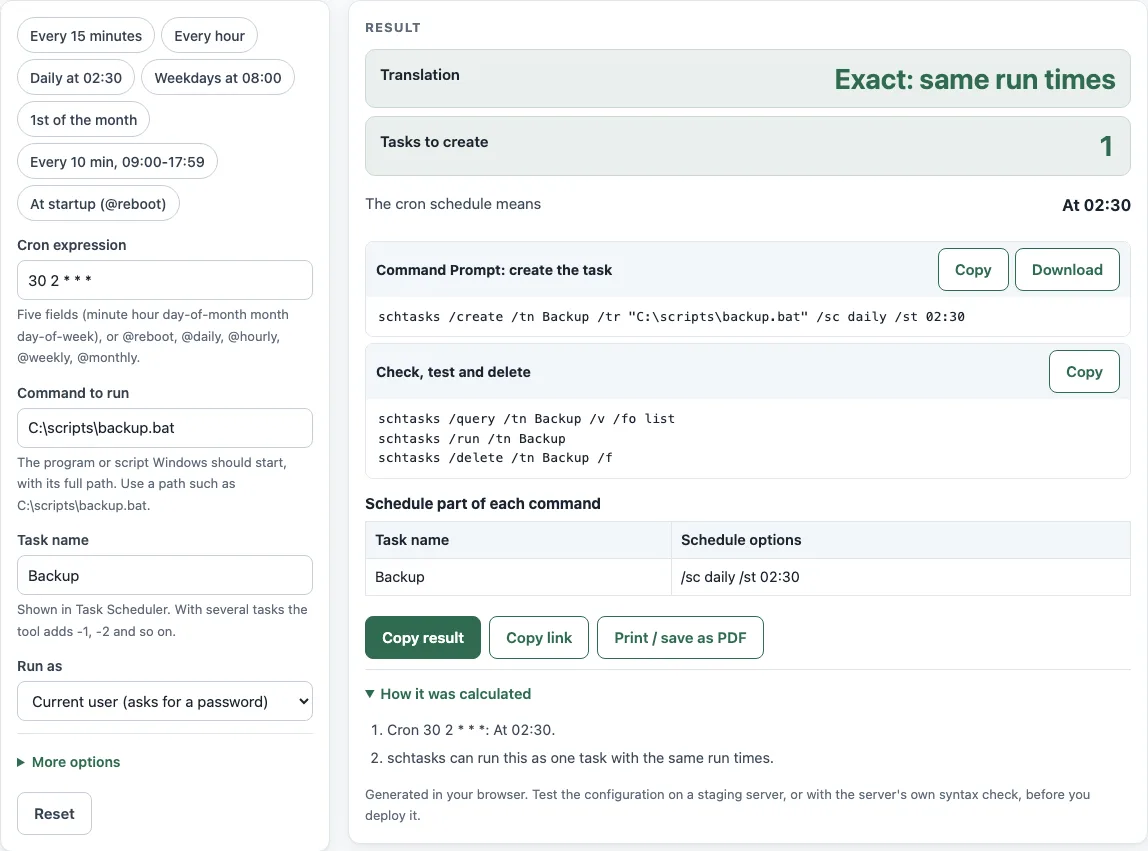
How to use the Cron to Windows Task Scheduler converter
- Type a schedule in Cron expression. Use five fields, or one of @reboot, @daily, @hourly, @weekly or @monthly. You can also click a preset chip, such as Every 15 minutes or Weekdays at 08:00.
- Type the program or script in Command to run, for example
C:\scripts\backup.bat. - Type a Task name. With more than one task the tool adds -1, -2 and so on.
- Choose Run as: Current user (asks for a password) or SYSTEM account (no password).
- Open More options if you want Run with highest privileges or Replace a task with the same name.
- Read Translation, which says “Exact: same run times” whenever a command is shown. Then check Tasks to create and The cron schedule means.
- Copy the commands from Command Prompt: create the task, or click Download to save create-task.bat.
- Use Check, test and delete to review, start or remove each task.
A quick way to start is to click a preset chip such as Daily at 02:30 or At startup (@reboot), then change only the fields you need. The commands update as you type. The table Schedule part of each command lists the schedule options of every task. Read any warnings before you run the commands.
What is the Windows equivalent of cron?
Windows has no cron. Its equivalent is Task Scheduler, the scheduler built into Windows. Its command-line program is schtasks.exe, and the schtasks /create command makes a new task. Microsoft’s schtasks create reference lists the schedule types: MINUTE, HOURLY, DAILY, WEEKLY, MONTHLY, ONCE, ONSTART, ONLOGON, ONIDLE and ONEVENT.
A cron expression has five fields: minute, hour, day of month, month and day of week. Task Scheduler does not read that format, so the tool maps each pattern to a schedule type that schtasks understands.
How do I turn a cron expression into a schtasks command?
The tool reads each field and picks the matching schtasks schedule. A step such as */15 that repeats every N minutes, where N divides 60, becomes /sc minute /mo 15. A single time each day becomes /sc daily /st HH:mm, with /st set to a 24-hour time. Weekday patterns become /sc weekly /d MON,TUE,WED,THU,FRI, and a day of the month becomes /sc monthly /d.
Some cron expressions list several clock times, such as 0 8,12,18 * * *. Because /st takes only one start time, the tool creates one task for each time and numbers the names -1, -2 and so on. It creates at most 12 tasks.
Cron also has a special rule: if both the day of month and the day of week are restricted, the job runs when either one matches. The tool follows that rule by writing separate monthly and weekly tasks, and it shows a warning when this happens.
The tool writes a command only when the schedule can be copied exactly. Otherwise it shows the reason and no command. We tested the translation by simulating the documented schtasks rules for 35 sample cron expressions and comparing every run minute over 45 days with the cron expression. We did not run the commands on a Windows computer, so check a new task with the query command described below.
Sources (checked 18 October 2026): schtasks create · schtasks query · schtasks run · schtasks delete · crontab(5)
Worked examples
| Input | Result |
|---|---|
| 30 2 * * * | /sc daily /st 02:30 |
| */15 * * * * | /sc minute /mo 15 /st 00:00 |
| 0 8 * * 1-5 | /sc weekly /d MON,TUE,WED,THU,FRI /st 08:00 |
| 0 0 1 * * | /sc monthly /d 1 /st 00:00 |
| */10 9-17 * * * | /sc minute /mo 10 /st 09:00 /et 18:00 |
Calculated by the tool above; open it with the same values to see each step.
Frequently asked questions
How do I run a task every 15 minutes on Windows?
Enter */15 * * * * or click the Every 15 minutes chip. The tool writes /sc minute /mo 15 /st 00:00, which runs the task at minutes 0, 15, 30 and 45 of every hour.
How do I run a task on weekdays only?
Enter 0 8 * * 1-5 or click the Weekdays at 08:00 chip. The tool writes /sc weekly /d MON,TUE,WED,THU,FRI /st 08:00. To change the time, edit the hour and minute in the cron expression.
Why does the tool refuse some cron expressions?
The tool only produces exact translations, so it refuses any expression that Task Scheduler cannot match. Examples include */7, because cron runs at minutes 0, 7, 14 and so on, then has a 4-minute gap at the hour change, which a repeat every 7 minutes cannot copy. It also refuses expressions that need more than 12 tasks, such as 0 0 */2 * *, which needs 16 monthly tasks. The error message gives the reason.
Do I need a password or administrator rights?
You need to be an Administrator to schedule tasks, whatever you choose for Run as. With Current user, schtasks asks for your password when you run the command, because it always prompts unless you supply one. The SYSTEM account has no password, so the tool writes /ru SYSTEM for that choice. The tool never writes a password into the commands.
How do I test or delete the task?
Use the commands in Check, test and delete. schtasks /query /tn NAME /v /fo list shows the task with its advanced properties, so you can confirm the recurrence. schtasks /run /tn NAME starts the task now and ignores its schedule, which makes it a test. schtasks /delete /tn NAME /f removes the task; /f suppresses the confirmation message.
Why does my task not run?
Schtasks does not check that the program file exists, so a task with a wrong path is created but does not run. Check the path in Command to run, then start the task with schtasks /run. Microsoft suggests the Task Scheduler service log, SchedLgU.txt in the Windows folder, for errors. The program path must not exceed 262 characters.
Related tools
- Cron expression generator - Build a cron expression from a schedule before you convert it for Windows.
- Cron every N minutes - Look up cron expressions for repeating every few minutes.
- Cron expression tester - Check the run times of a cron expression before you use it.
- Crontab syntax explainer - Learn what each of the five cron fields means.
- Cron time zone converter - Convert a cron schedule to another time zone.
- systemd timer generator - Create a schedule for a Linux systemd timer instead of Windows.
- Kubernetes CronJob generator - Write a schedule for a Kubernetes CronJob.